If more than one person wants to use Anki on your computer, you can set up a separate profile for each user. Each user profile has their own collection, and own program settings. Add-ons are shared across profiles. Profiles are configured by going to the File menu and choosing “Switch Profile”.
Warning
Only a single profile can be synced to an AnkiWeb account.
If you have different users on your computer, each user will need to set up a separate AnkiWeb account for their profile. If you attempt to link two or more profiles to the same AnkiWeb account, you will overwrite the data from one profile with the data from the other.
Profiles are primarily intended to be used by different people, and are not recommended for splitting up your own content. If you have created multiple profiles for yourself, the best option is to merge them into a single profile. You can do so by exporting one deck from profile A, and then importing it into profile B, repeating for any other decks in profile A, until everything is in profile B.
AnkiDroid does not support profiles.
Profiles window
Managing User Profiles
Open the Profiles window to create, rename, or switch between separate Anki collections.
Step 01: Choose File > Switch Profile
From the main window, choose File > Switch Profile (or press Ctrl+Shift+P) to open the Profiles manager.
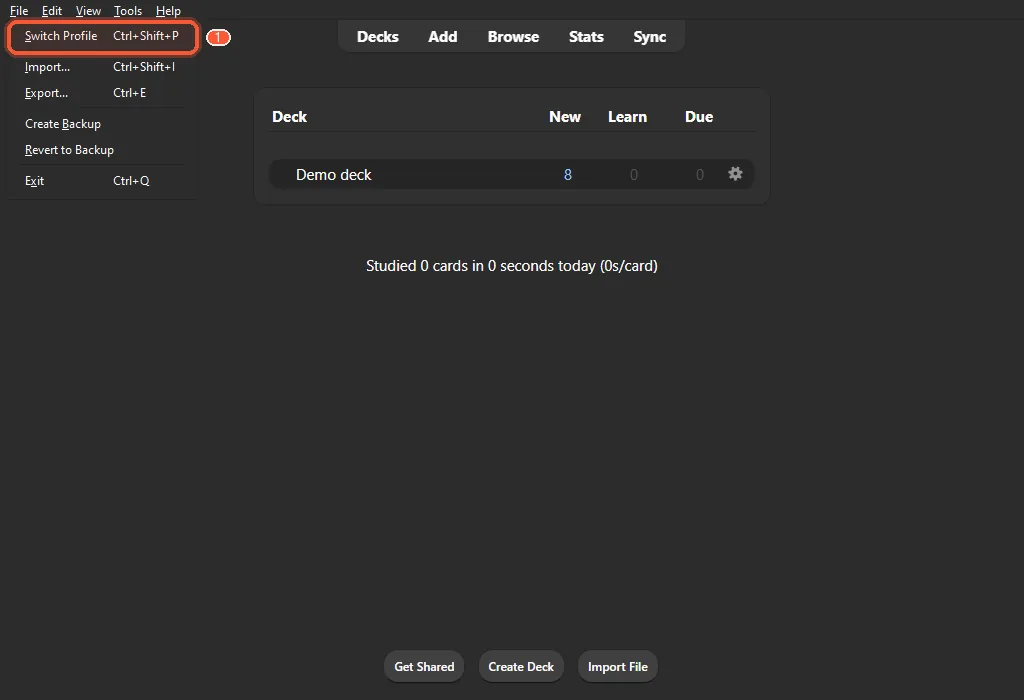
From the Profiles window (accessible via File>Switch Profile from the main window), you can:
- Open / Add / Rename / Delete user profiles.
- Quit the program.
- Restore an automatic backup.
- Downgrade your collection, which is necessary if you want to open it with an earlier Anki release. If you skip this step, you may get an error message when opening your collection in an older Anki version, and you will need to return to this version, downgrade, then try again.