Menu Shortcuts
Cleaning Up Empty Cards
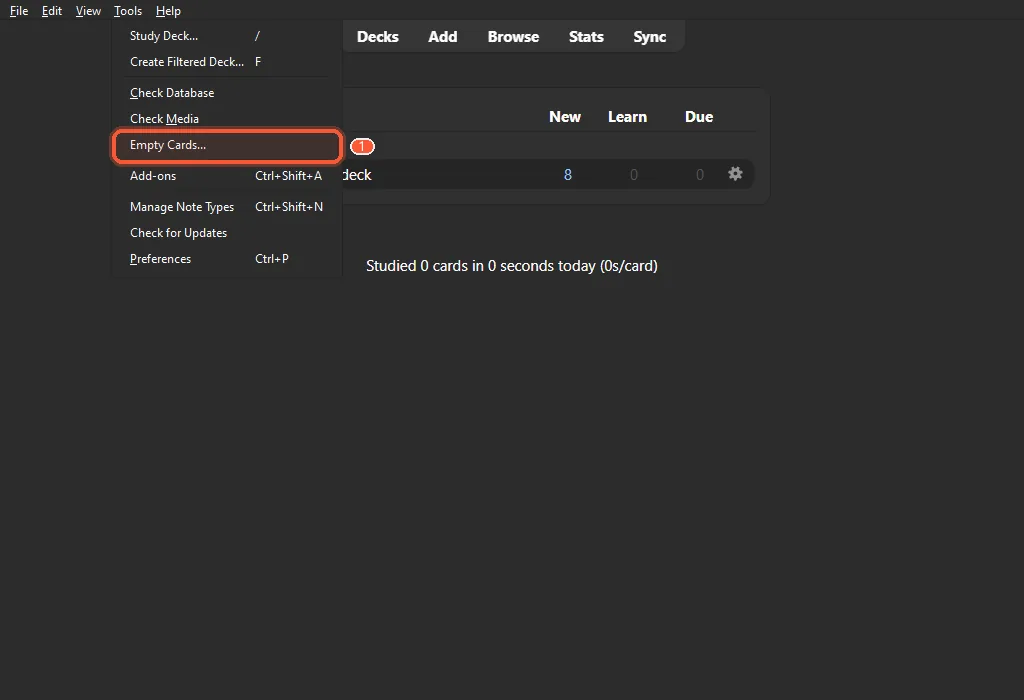
Remove cards whose front template renders blank using Tools > Empty Cards.
Step 01: Open Tools > Empty Cards
Choose Tools > Empty Cards… from the top menu bar to scan your collection for blank cards and remove them safely.
On Windows/Linux you can hold down the Alt key and press a highlighted letter to activate a particular menu.
Although macOS doesn’t support this feature, it does allow you instead to assign shortcuts to specific menu items. See https://support.apple.com/en-au/guide/mac-help/mchlp2271/mac for more information.
Debug Console
Sometimes you may be asked to use the debug console to change a setting or check something. Unless asked to enter text in the “debug console”, you will probably not need this. Advanced users may like to read more about it in the add-on writing guide.
When asked to enter text into the “debug console”, please start Anki, and in the main window, press
Ctrl+Shift+;
(the control key, shift key, and semi-colon key at the same time)
On a Mac, press
Command+Shift+;
(the command key, shift key, and semi-colon key at the same time)
On some non-English keyboards, you may need to press : or + instead of ;.
In the window that has popped up, paste the text you were asked to paste in the top section. When you’ve done so, press
Ctrl+Return (On Mac, Command+Return), and some text should appear in the bottom section. If you’ve been asked to paste the resulting output, copy it from the bottom area, and paste it back to the support person.
If you press Ctrl+Shift+Return instead of just Ctrl+Return, Anki will try to print the result rather than doing what you asked it to. If you are getting unexpected errors, make sure you’re not holding down the Shift key.