Move between Anki’s main screens and dialogs without reaching for the mouse. For the full reference, see the official Anki Manual.
Screen-to-Screen Shortcut Map
flowchart LR
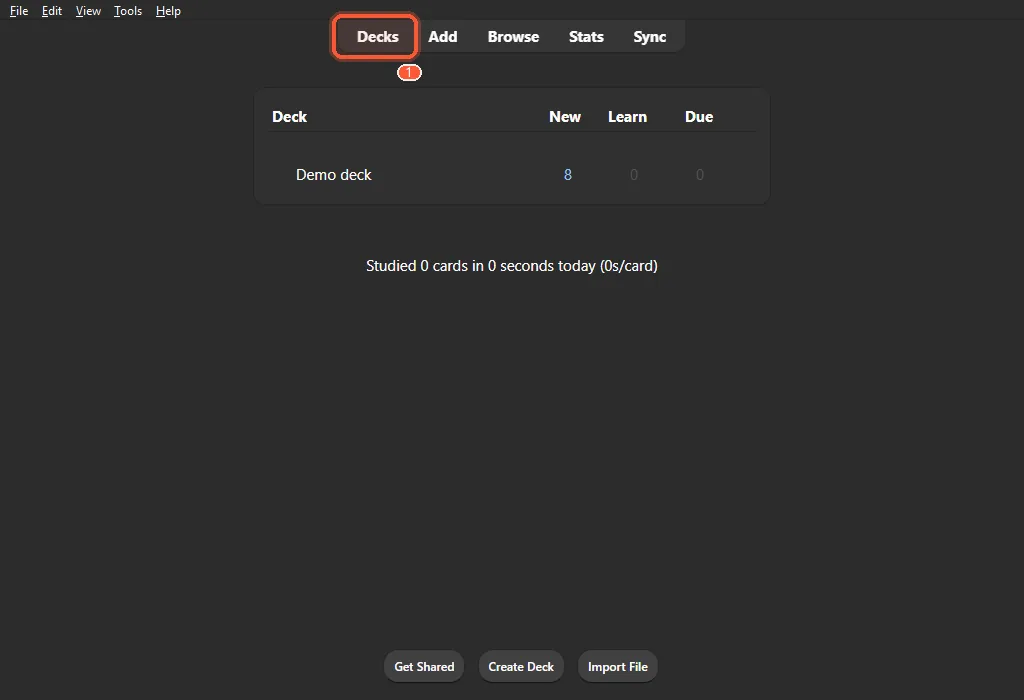
  Decks["Decks (D)"] -->|"A"| Add["Add Cards (A)"]
  Decks -->|"B"| Browse["Browse (B)"]
  Decks -->|"T"| Stats["Stats (T)"]
  Decks -->|"Y"| Sync["Sync (Y)"]
  Decks -->|"S"| Study["Study (S)"]
  Study -->|"E"| Edit["Edit Current (E)"]
  Study -->|"Ctrl+Z"| Undo["Undo Last Action (Ctrl+Z)"]
Core Navigation Shortcuts
| Shortcut | Action |
|---|---|
D | Return to the Decks screen |
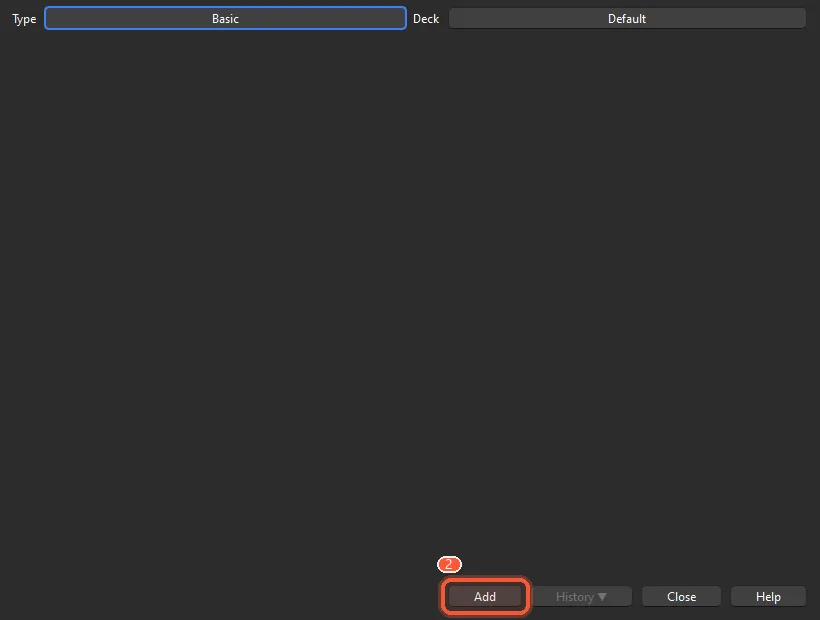
A | Open the Add window |
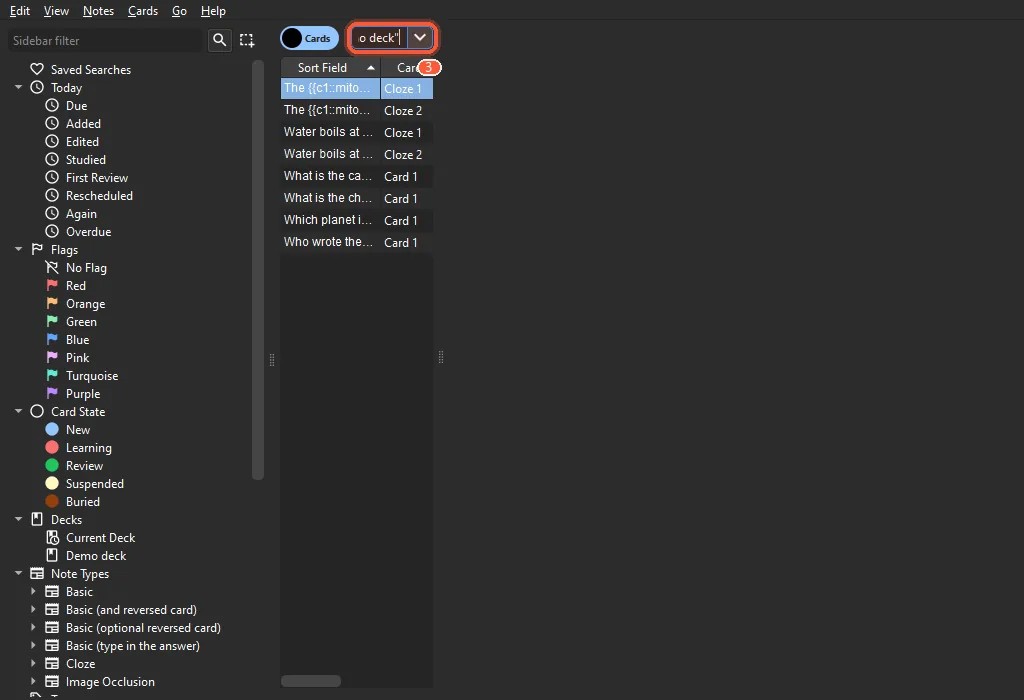
B | Open the Browse window |
T | Open Stats |
Y | Trigger Sync |
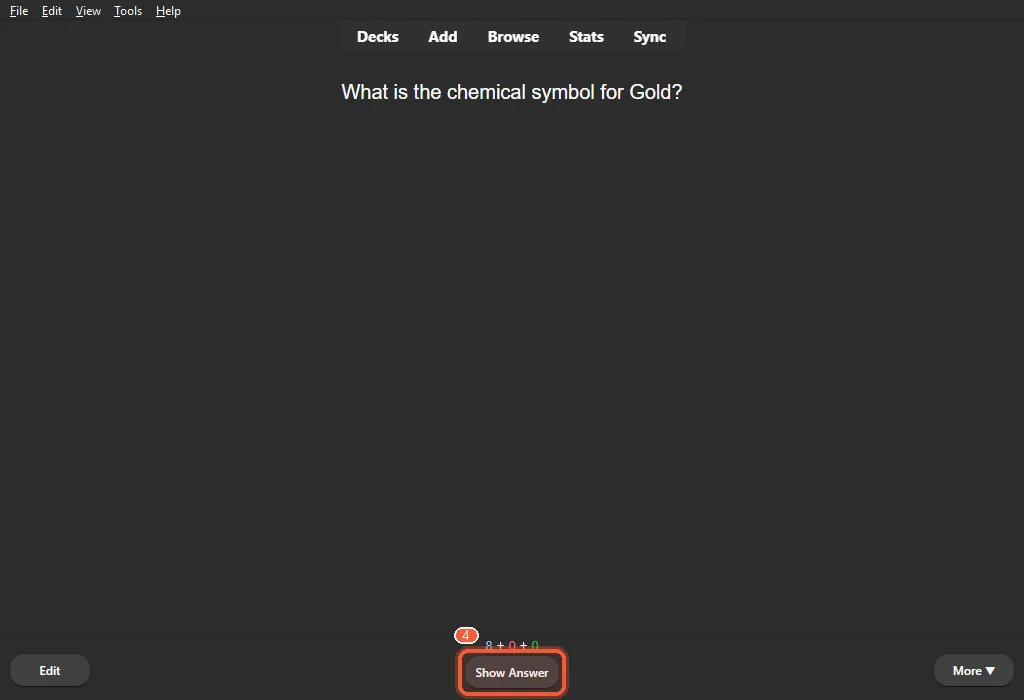
S | Start Study on the selected deck |
E | Edit the current card while studying |
Ctrl+Z | Undo the last action |
Walkthrough
Navigating Anki with Keyboard Shortcuts
Jump between Decks, Add, Browse, Study, and Edit using single-key shortcuts.
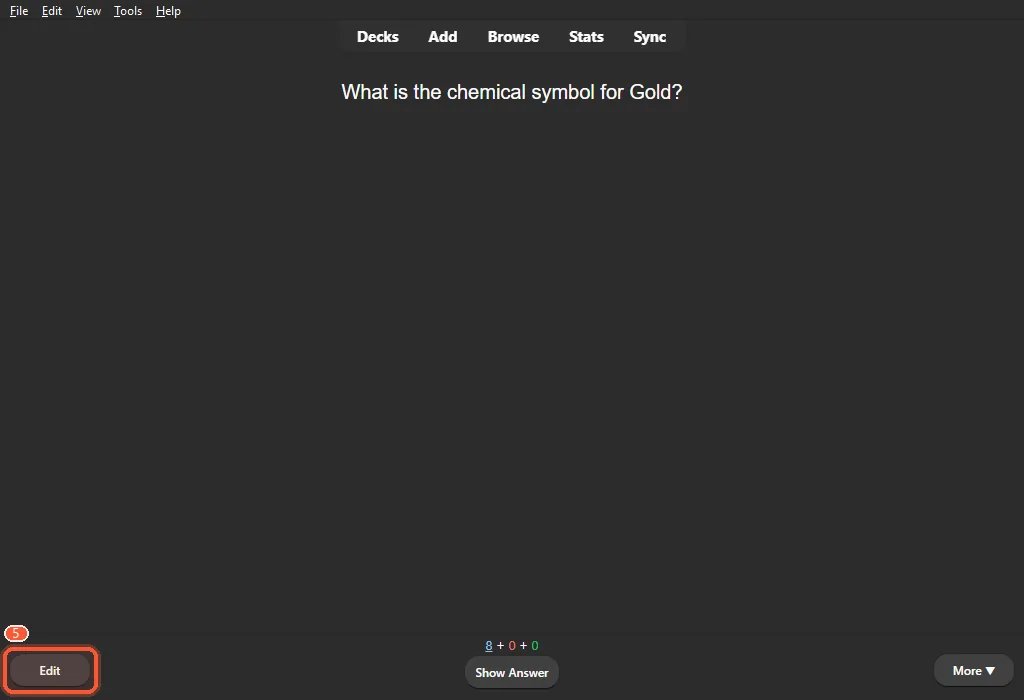
Step 01: Decks & Top Toolbar (D, A, B, T, Y)
From anywhere in the main window, press D for Decks, A for Add, B for Browse, T for Stats, or Y to Sync.
Step 1 of 5