Find, download, and install community add-ons using their AnkiWeb code. For full details on managing add-ons, see the official Anki Manual and our Managing Add-ons walkthrough.
Add-on Installation Workflow
flowchart LR
  Browse["Browse ankiweb.net/shared/addons"] -->|"Copy Code"| Open["Tools > Add-ons (Ctrl+Shift+A)"]
  Open -->|"Get Add-ons..."| Paste["Paste Code & Click OK"]
  Paste --> Restart["Restart Anki"]
1. Find an Add-on & Copy Its Code on AnkiWeb
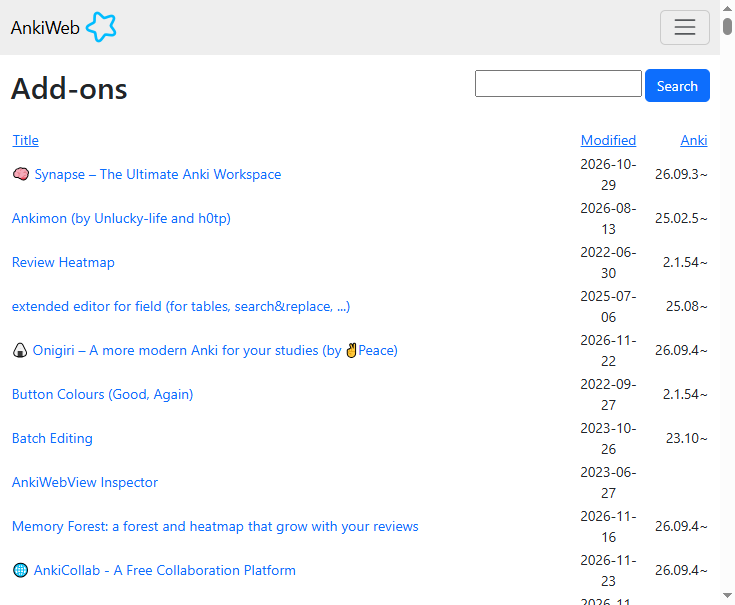
Visit ankiweb.net/shared/addons to browse by Title, Modified, or Anki version, or search in the top-right bar.
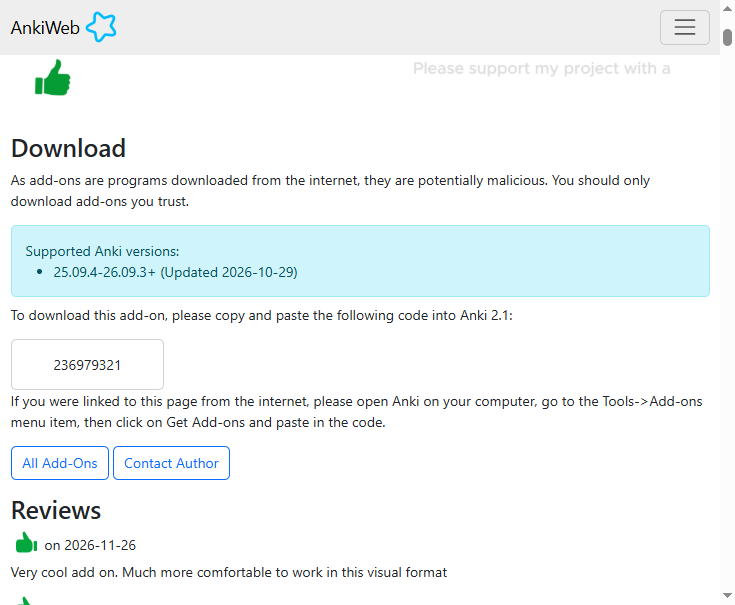
Open the add-on’s page, scroll to Download, check Supported Anki versions, and copy the numeric code box (you can also use All Add-Ons or Contact Author below it).
2. Install in Anki
- Open Tools > Add-ons (
Ctrl+Shift+A). - Click Get Add-ons…, paste the numeric code, and click OK.
- Restart Anki for the add-on to take effect.